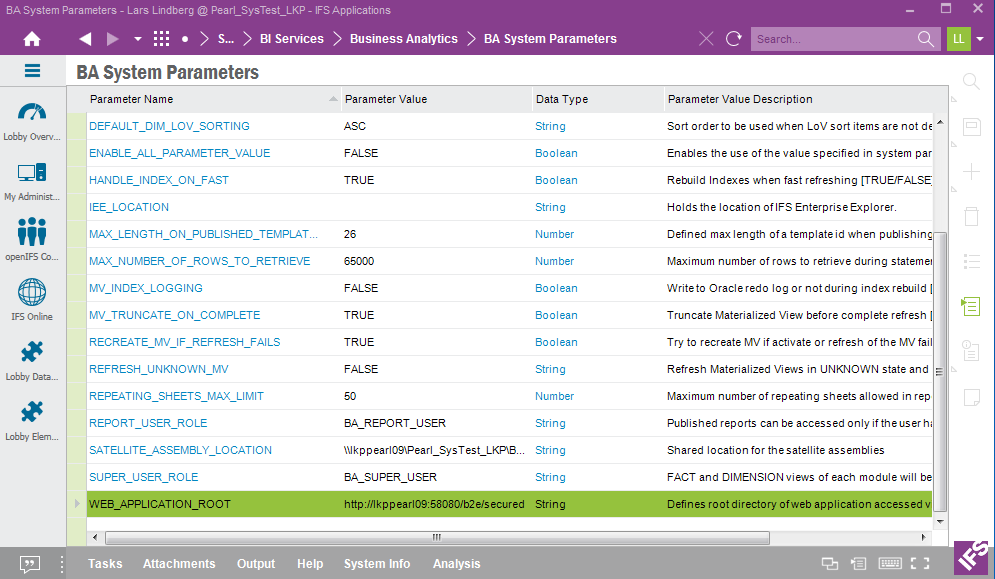
This page describes system parameters related to IFS Business Analytics.
There are two main types of system parameters, Mandatory and Optional, both accessible in the same form.
System parameters related to IFS Business Analytics as found in the BA System Parameters form in Solution Manager.
Mandatory parameters are essential for IFS Business Intelligence Services to function properly.
| Parameter Name | Description |
|---|---|
| IEE_LOCATION | Defines the URL, full path, to the IFS Enterprise Explorer client that
represents the current environment. The URL is used by
IFS Business
Analytics when performing so called URL navigation, i.e. opening a specific
form in IFS Enterprise Explorer from a detailed report in
MS Excel/IFS Business Analytics. If the parameter is not set, then no URL options will be available in IFS Business Analytics. The template parameter value is defined as: A practical example might look like this: http://lkprnd321:58080/client/runtime/Ifs.Fnd.Explorer.application One way of finding the URL is to use the Address in Properties dialog for the link to IFS Enterprise Explorer on the accurate environment page. |
| REPORT_USER_ROLE | Permission Set (role) that will grant access to all Published IFS Business Analytics reports. An end user must have access to this functional role (via an end user role) in order to access IFS Business Analytics reports in Info Services. By default this is set to the pre-defined role (permission set) BA_REPORT_USER. |
| SATELLITE_ASSEMBLY_LOCATION | Defines a public share that contains satellite assemblies to be used by
IFS Business Analytics when refreshing its translations.
IFS Business
Analytics does not yet support automatic download of translations, by
Microsoft defined in so called satellite assemblies. To be able to add new
translations, typically adding a new language, to IFS Business Analytics, it
is necessary to make the translation assemblies available. This is handled
by defining a public share from where the assemblies can be downloaded.
The share is defined as For more information please refer to IFS Business Analytics Translation Guideline Note: Only available in an installation with a IFS Development License |
| SUPER_USER_ROLE | Permission Set (role) that will be granted access to all Dimensions and Measures defined in IFS Business Intelligence
Services. The role is mainly there to support development and training of IFS Business Analytics, by connecting this functional role to an end user role (permission set) that represent the developers or trainees. By default this is set to the pre-defined role (permission set) BA_SUPER_USER. |
| WEB_APPLICATION_ROOT | This parameter describes the web root for typically b2e web access. It
must be defined to make the URL navigation functionality to work. i.e.
navigating to an IFS Applications web page from the Drill Down or Zoom In
detail sheet in IFS Business Analytics. By default this parameter has the value http://<machine>:<port>/b2e/secured. The <machine> and <port> has to be that of the Application server. However this parameter is not used when opening a Windows client window directly from a Drill Down or Zoom In detail sheet. |
The following System Parameters are optional to configure. The default settings should be enough for most cases.
| Parameter Name | Description |
|---|---|
| ALL_PARAMETER_VALUE | The value of this parameter is used as a representation of All values for String parameters in IFS Business Analytics when the system parameter ENABLE_ALL_PARAMETER_VALUE is set to TRUE. The value of the parameter will be displayed in the List of Values dialog for String parameters, but only if system parameter ENABLE_ALL_PARAMETER_VALUE is set to TRUE. |
| ALLOW_NESTED_BASIC_REPEATERS | Specifies whether to allow nested basic repeaters for unconnected dimension items in IFS Business Analytics. Default value is FALSE. Enabling nested basic repeaters in a design row, can lead to slow performance. |
| BA_ARCHIVE_REPORT_LIFETIME | Specifies the cleanup age limit in days for reports stored in the
IFS
Business Analytics Client Archive. The default value is
30 days. The archive is typically used to store executed IFS Business Analytics reports when performing export of non-IFS Business Analytics to someone that does not have IFS Business Analytics installed. The receiver typically fills in information in the Excel file before sending it back to IFS Applications for import and write back. The original file at the time of export must be available in the archive to be able to handle the import. Thus the lifetime limit must be set to that there is no risk that required original reports are removed by a built in cleanup functionality. |
| BA_EXECUTION_SERVER_AVAILABLE | Specifies whether IFS Business Analytics Execution Server is used for
rendering of IFS Business Analytics reports
in order to reduce the time for the report
rendering process. Default value is NO. If the value ONLY_FOR_SCHEDULED_REPORTS is used the IFS Business Analytics Execution Server will only render scheduled reports. When the value FOR_ALL_INFO_SERVICES_REPORTS is used, both online and scheduled reports will be rendered with the IFS Business Analytics Execution Server. |
| BA_ONLINE_HELP_BASE | Defines the root directory for IFS Business
Analytics on-line help. Can either be a direct folder reference as e.g. D:\IfsBaRoot\BaHelp if the help files have been downloaded to disk or a http location if a web server is used, e.g. http://<server>:<port> The base should point to an address one level above the language folder. You should have the path en/bacli/EndUserHelpGuide below the base, since it is fixed. |
| DEFAULT_DIM_LOV_SORTING | Specifies the sort order to be used when opening a List of Values dialog in
IFS Business Analytics
client with respect to a dimension item which has no predefined List of
Values sort order defined. By default
this parameter is set to ASC (Ascending). Other valid values are DESC (Descending), NONE (Dimension item will not be sorted) |
| ENABLE_ALL_PARAMETER_VALUE | Enables the use of the value specified for system parameter
ALL_PARAMETER_VALUE as the representation
for All values for a String parameter in IFS
Business Analytics. The parameter makes it possible to
turn on/off the possibility to use a String parameter value representing All
values. E.g. instead of selecting all values in the List of Values for a
String parameter, the value represented by parameter
ALL_PARAMETER_VALUE can be used instead.
Currently the All value only applies to String parameters. Date and Number
parameters are not supported. The defined ALL_PARAMETER_VALUE will appear in List of Values for String parameters if ENABLE_ALL_PARAMETER_VALUE parameter is set to TRUE. |
| HANDLE_INDEX_ON_FAST | Specifies if indexes on a Materialized Views should be handled or not during FAST (incremental) refresh.
This means that before refresh then all non-unique indexes are marked as Unusable and then they are rebuilt after the FAST refresh.
The purpose is to boost performance during refresh. By default the parameter is set to
TRUE.
Should be set to FALSE only if the system manager believes that it is better to update FAST refreshable Materialized Views and connected indexes directly when data is added/modified or removed. Note: Fast refresh of Materialized Views is no longer supported by IFS but the parameter is still there to support implementations/customizations where FAST refresh is used. |
| MAX_LENGTH_ON_PUBLISHED_TEMPLATE_ID | The maximum length of a IFS Business Analytics report identity if published to Info Services. Should NOT be modified. |
| MAX_NUMBER_OF_ROWS_TO_RETRIEVE | This specifies the maximum number of rows to retrieve for one data set (one SELECT statement). The purpose is to avoid total deadlock if a query due to some reason will retrieve a huge number of rows. Default is 65000. |
| MV_INDEX_LOGGING | Specifies whether rebuilding indexes on a Materialized View will
affect the redo log or not.
By default the parameter is set to FALSE. |
| MV_TRUNCATE_ON_COMPLETE | Specifies whether Materialized Views should be truncated before being
completely refreshed, i.e. the parameter only applies to Materialized Views
that are defined as REFRESH COMPLETE.
Default value is TRUE. Truncating a Materialized View before complete refresh will speed up refresh and also reduce the growth of redo log. |
| RECREATE_MV_IF_REFRESH_FAILS | Specifies if an attempt should be made to recreate a Materialized View
if activate or refresh operation fails. The default value is
TRUE. |
| REFRESH_UNKNOWN_MV | Specifies if Materialized Views with staleness UNKNOWN
should be refreshed. Default value is FALSE. A Materialized View gets the staleness UNKNOWN
if the definition contains calls to non-deterministic functions. If value is set to TRUE, then a Materialized View with state/staleness UNKNOWN is considered as not up-to-date (i.e. more or less STALE) and it will always be a refresh candidate. Note however that the staleness is still UNKNOWN after the refresh |
| REPEATING_SHEETS_MAX_LIMIT | Specifies the default number of sheets when using Sheet Repeater functionality in IFS Business Analytics. A warning message will appear in IFS Business Analytics if the supplied limit is about to be exceeded. For improved usability, the warning message can be ignored. The parameter only has impact when a report is executed from the IFS Business Analytics client. If a report is executed via IFS Business Analytics Execution Server then this parameter will not be used. |